
Understanding 'Collate' in Printing: What Does It Mean?
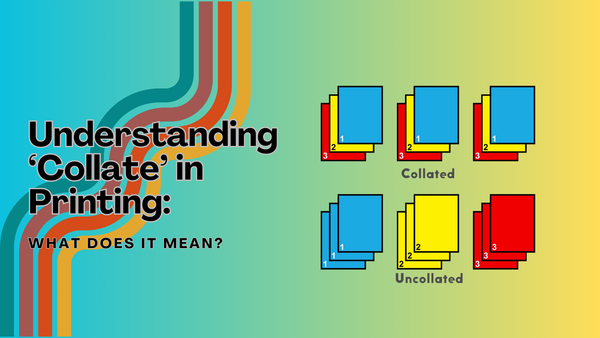
Printing a document with multiple pages is something I do and I'm sure you do quite often. One of the printing options you're given, and not one I knowingly use very often, is to print the pages collated.
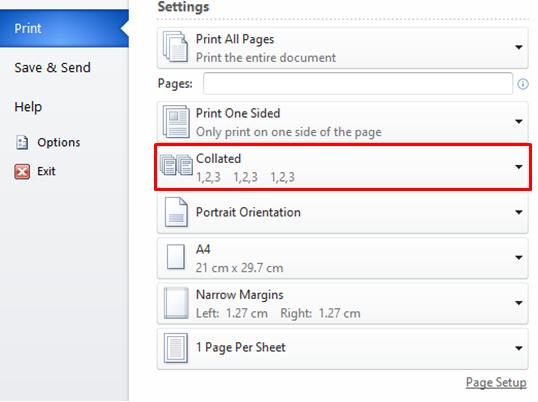
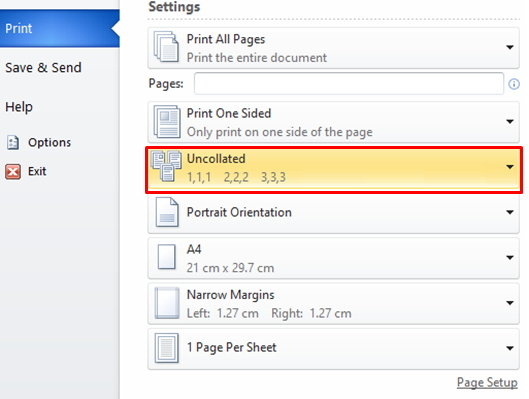
What does Collate mean?
Outside of printing Collate is defined in the dictionary to collect information together from different sources in order to examine and compare it. This includes and isn't limited to data, text or documents.
This leads us neatly on to the collated meaning and what exactly collated printing is.
So what exactly does it mean to collate when printing?
What does collate mean in printing? To collate when printing means your printer will organise printed pages in their correct order, sequentially, for multiple copies of a document.
Example of a 3 copy collated print job
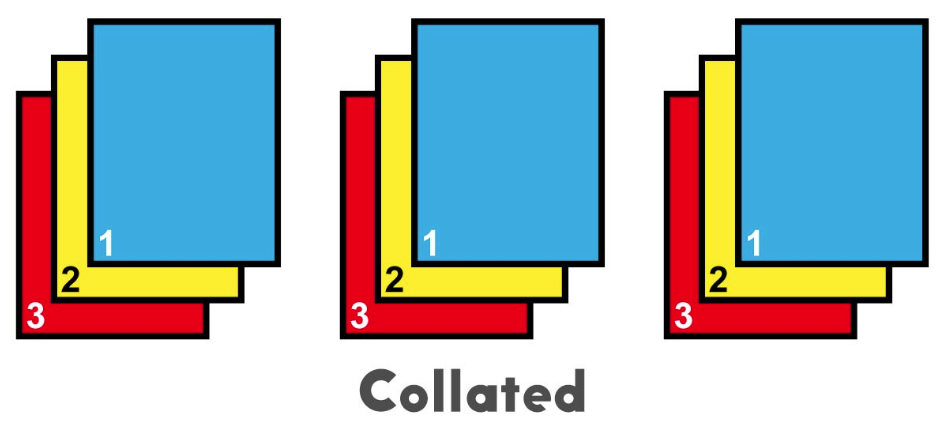
You can see each copy has printed in order before the next copy of the document has started printing. Uncollated printing looks rather different, rather unsurprisingly.
Example of an uncollated 3 copy print job
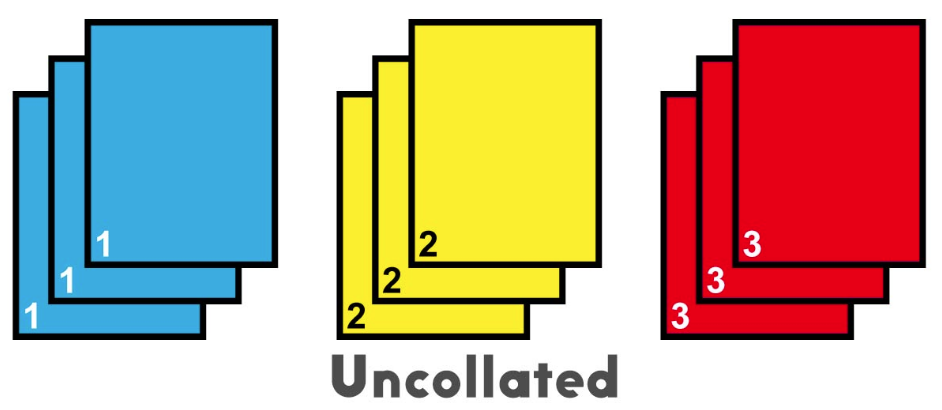
It's quite evident from both examples that collated printing is really useful for printing multi-page documents, especially if you're getting ready for a meeting or presentation, those copies will be easy to distribute.
You'll end up spending time sorting that print job in to its relevant documents. I for one couldn't imagine anything more frustrating, especially as these jobs are often more than 3 pages, sometimes as many as 15-20.
When to use collated printing
Presentation Documents
If you've got an important meeting coming up and you've got to present and hand out information, collated printing will save you plenty of prep time because the printed pages will already be ordered. You won't need to spend any time sorting the documents either so there won't be any chances of unordered or unsorted hand-outs.
Binding
Another perfect time to print collated is if you are planning to bind your prints. It doesn't really matter if you are going to manually bind them or use a binding machine, it makes the whole task much easier if you've printed out collated so the pages have come out in order 1,2,3,4,5 for example.
Running Low on Consumables
If you find yourself running low or even completely run out of ink cartridges or toner cartridges, one of the best things about collated printing is that you won't have to start your print run again if most of the printing has completed, your printed copies will be in order. However, if you've printed uncollated you'll likely be missing pages, mainly the later pages that hadn't printed yet.
Time Constraints
This may seem like an obvious one but if you're pushed for time choosing to printed your documents collated will save you plenty of time.
When to use uncollated printing
It's easy to assume having read this far that collated printing is the only sensible option but I'm here to tell you that there is a time and a place to use uncollated printing.
Printing Booklets of Leaflets
Useful for when you don't need to print in any particular order.
Checking Print Quality
If you're experiencing poor print quality or you have a print job that requires high quality choose to print uncollated because it's easier to check the quality of multiple of the same page against one another.
Advantages of Collated Printouts
Collating your documents before you hit print will eliminate the need to sort through and arrange your pages once printed. This not only saves you time, it also makes you more efficient, which is what we are all aiming for.
Whether you need to print leaflets, booklets, PDF documents or guides, using collated printing ensures your prints are organised and ready to go.
What it also means is that if you print collated your large documents for presentations will come pre-grouped in the correct order. This can even allow you to skip binding or fastening, further streamlining the process and saving valuable time.
Step-by-Step Guide to Collate Printing on your Printer
Step 1
You'll probably find the collate option ticked by default when you come to print but check just in case. You'll find it in the print settings. The option will say 'Collated' and will have 2 stacks of paper showing next to it.
Step 2
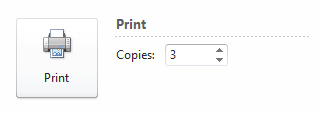
Choose the number of copies you wish to print using the up and down arrows next to the print button.
Step 3
Click the print button and wait for your collated copies to come out of the printer.
If you have a HP printer and you're keen to extend its operating life then you can read one of my most recent blogs about how to maximise the life of your HP printer.
Blog Author: Simon Cross is the engaging and knowledgeable voice behind the insightful articles on printers and printer consumables at IJT Direct, an ecommerce store renowned for its comprehensive selection of printers, printer consumables, and hardware. View Simons author page to find out more about him.
Browse Our Top Ink Cartridges