
How to Perform Regular Printer Maintenance
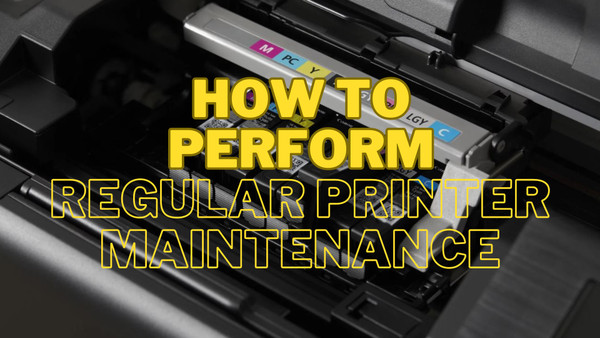
Performing regular printer maintenance is essential for ensuring your printer remains at is optimal performance level whenever you need to use it. It also ensures you can extract the maximum useful life from it before it needs to be replaced.
For those of you that own Inkjet printers, the following information should paid attention to because of the nature of using liquid ink.
The following steps are what I follow and what I would strongly suggest following to help maintain your printer:
Clean the printer exterior
This may sound like the least important step to take but it’s probably the easiest and most obvious. Not only does it keep the printer looking clean it also ensure dust doesn’t build up in those more sensitive areas of the printer.
- Take a lint-free cloth and wipe down the exterior of the printer.
- Do not use any harsh chemicals, a damp cloth and a spray of anti-bac will do the job
Clean the printheads
This is the heart of the inkjet, the component that moves up and down the paper delivering ink to paper.
To ensure the printheads do not clog up I suggest following these steps:
- Most printers will have built-in utility software accessed via the printer itself and/or via the laptop or PC it is connected to. Access this software and run the printhead clean cycle
- Run this cycle every 1-2 weeks to prevent dried up ink and clogging. This will ensure continued print quality
If you’re interested in delivering further in to the inner works of inkjet printer read my blog on how does an inkjet printer work .
Replace cartridges
I’m probably stating the obvious when I say that during regular use a cartridge will only need replacing when it runs out. Irregular use will mean that you may need to replace your cartridges a little more often.
- Keep an eye on the levels within your cartridges using the software tools supplied with your printer
- Replace cartridges when they reach critical levels and ideally before they are empty to reduce printing quality issues
Align the printheads
Making sure the printheads are clean and not covered in dried up ink is only part of the process. This part come be done using the software tools provided with the printer.
- Use the printers alignment tool either found in the navigation menu in the printer itself or using the provided software
This process ensures the colours are bright and solid and not dull and streaky with lines all over the page.
Update printer firmware and drivers
This will ensure your printer operates properly and is secure from outside attacks. This is important because so many of our household printers are wirelessly enabled and any device connected to a wireless network, if not properly protected, is vulnerable data theft.
- Again using the software tools provided with your printer, check for any driver and firmware updates at regular intervals.
Keep the paper path clear
Probably an obvious step this but just as important.
- If you have a paper jam it’s important to follow the instructions on the printer to properly and carefully remove any jammed paper. Simply trying to rip or pull out any jammed paper may damage your printer.
- Giving the paper rollers a wipe over with a lint-free cloth is a sensible idea to ensure it doesn’t build up contaminates that will stop paper being fed properly
Print regular test pages
Rather than following every single step highlighted here printing a test page will help narrow down any possible issues before they become serious.
- Using the printers diagnostic tools print a test page
I have written a blog specifically about printer test pages that gives loads more useful info. I have also included a PDF printable test page specifically for this.
Use suitable paper for the print job
Selecting the correct paper for the print job is important, but also making sure you’re using the suitable paper for the printer. You won’t be able use just any paper in any printer, read my definitive guide for more information.
- Check your printer specifications for the range paper you can use
- Avoid damaged and unsuitable paper as this may cause paper jams and reduce print quality
Store your printer cartridges correctly
This will depend on if you use ink or toner cartridges. Ink cartridges have liquid ink so they can dry out far quicker in sunlight and warmer conditions whereas toner cartridges have power so are far less prone to drying out.
- General rule of thumb, store any spare cartridges in a cool dry place, not in direct sunlight
- Do not remove any pull tabs or seals
Shut down your printer
Not only is this kinder for the environment, it’s also kinder on your pocket. Most printers will have a low power or standby mode but turning off your printer simply by unplugging it can cause performance issues.
- Use your printers power off procedure so it completes is proper shutdown process
Following all these steps will maximise your printer’s efficiency and prolong its useful life span. You’ll experience less downtime and disruption, especially if you rely heavily on your printer.
Blog Author: Simon Cross is the engaging and knowledgeable voice behind the insightful articles on printers and printer consumables at IJT Direct, an ecommerce store renowned for its comprehensive selection of printers, printer consumables, and hardware. View Simons author page to find out more about him.
Browse Our Top Ink Cartridges