
signup
Enter your email address and receive all updates!
HP Envy 6000 All-in-One Ink Cartridges
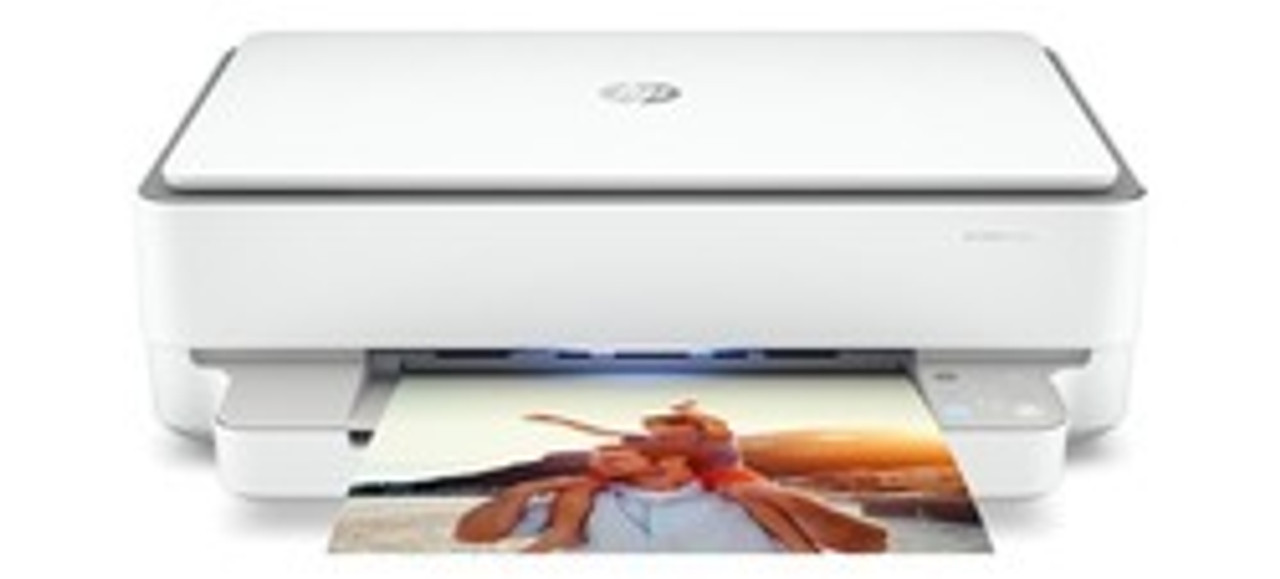
The following HP Ink Cartridges are guaranteed to work in your HP Envy 6000 All-in-One printer
-

IJT Recycled HP 305XL 2 Ink Cartridge Multipack High Capacity 6ZA94AE
IJT
SKU: 16602
- Up to a 5 year shelf life
- Save £££ against original HP 305 ink
- 5 Year Warranty
- Buy recycled, it's better for the environment!
- Save £££ against original HP ink
Page Yields
-
240 Pages
-
200 Pages
£30.93In Stock -
IJT Recycled HP 305XL Ink Cartridge Black High Capacity 3YM62AE
IJT
SKU: 16600
- Up to a 5 year shelf life
- Save £££ against original HP 305 ink
- 5 Year Warranty
- Buy recycled, it's better for the environment!
- Save £££ against original HP ink
Page Yields
-
240 Pages
£16.74In Stock -
IJT Recycled HP 305XL Ink Cartridge Tri-Colour High Capacity 3YM63AE
IJT
SKU: 16601
- Up to a 5 year shelf life
- Save £££ against original HP 305 ink
- 5 Year Warranty
- Buy recycled, it's better for the environment!
- Save £££ against original HP ink
Page Yields
-
200 Pages
£15.74In Stock
IJT Recycled HP Envy 6000 All-in-One Ink Cartridges


-
HP 305XL 2 Ink Cartridge Multipack High Capacity 6ZA94AE Original
HP
SKU: 866103
- Long shelf life
- Genuine HP ink
- Manufacturer Warranty
Page Yields
-
240 Pages
-
200 Pages
£40.81In Stock -
HP 305 Ink Cartridge Black 3YM61AE Original
HP
SKU: 86618
- Long shelf life
- Genuine HP ink
- Manufacturer Warranty
Page Yields
-
120 Pages
£11.29In Stock -
HP 305XL Ink Cartridge Tri-Colour High Capacity 3YM63AE Original
HP
SKU: 86601
- Long shelf life
- Genuine HP ink
- Manufacturer Warranty
Page Yields
-
200 Pages
£19.51In Stock -
HP 305XL Ink Cartridge Black High Capacity 3YM62AE Original
HP
SKU: 86600
- Long shelf life
- Genuine HP ink
- Manufacturer Warranty
Page Yields
-
240 Pages
£21.34In Stock -
HP 305 Ink Cartridge Tri-Colour 3YM60AE Original
HP
SKU: 86619
- Long shelf life
- Genuine HP ink
- Manufacturer Warranty
Page Yields
-
100 Pages
£11.29In Stock
Original HP Envy 6000 All-in-One Ink Cartridges



Expert Review: Is The HP Envy 6000 a Good Printer?
HP Envy 6000 All-in-One wireless printer offers a perfect printing set up for home, education and work requirements. Its versatility includes multifunction printing scanning and copying as well as multiple connectivity options.
We sell the best quality HP 305 ink for the HP Envy 6000 All-in-One. Our IJT branded HP 305 ink cartridges are covered by an industry leading 5 Year Warranty backed up by friendly customer support and advice. If you are looking for cheap ink for the HP DeskJet 2600 printer, buy our IJT branded recycled HP ink that not only has a maximum shelf life of 5 years, there is no loss in quality compared to HP OEM ink and it's far better for the environment.
Here are the essential specifications that make this printer an excellent addition to your home, small office or education setting:
Print Speed: The HP Envy 6000 delivers swift and efficient printing with speeds of up to 10 pages per minute (ppm) for both black and white and colour prints.
HP 305 Ink: This printer is equipped with affordable standard HP ink cartridges that provide decent page yields, up to 120 pages of black and 100 pages of colour. High capacity cartridges with page yields up to 240 black and 200 colour pages allow you to print more without frequently replacing cartridges. Save time and money with high-capacity cartridge options, available as both HP original or for best value, try IJT recycled cartridges.
Printer Dimensions: With its compact design, this printer is space-saving, measuring approximately 432 mm (width) x 360 mm (depth) x 132 mm (height). It can fit seamlessly into almost any workspace due to its compact design.
Connectivity: The HP Envy 6000 features both wired and wireless printing options. Connect via a USB printer cable for local printing or print over Wi-Fi, Apple AirPrint, HP Smart app or Mopria. more).
Cartridge Type: This printer uses HP ink cartridge system, ensuring crisp and vibrant prints with every use. With both the black & tri-colour cartridges available in standard and XL yields, high print volumes can be achieved.
Special Features: The HP Envy 6000 offers multiple connection options as mentioned above and it will also support a wide variety of media types in this printer including copier paper, photo paper, labels, envelopes, cards and brochures.
How to Reset HP Envy 6000 Printer
If your printer is acting up, a quick reset often does the trick to resolve connectivity issues, offline errors, and general glitches.
To do a basic reset on a HP envy 6000:
- Unplug the printer while it’s powered on
- Wait about 60 seconds
- Plug it back in and switch it on.
If you need to factory reset your HP Envy 6000 printer:
- Press and hold the Wi-Fi and Cancel buttons together for about 5 seconds
- The Wi-Fi light should begin blinking, which means the reset is in progress, returning the printer to its original factory settings.
- Reconnect to Wi-Fi once reset is complete.
How to Connect HP Envy 6000 to Wi-Fi
Connecting your HP Envy 6000 to Wi-Fi is simple and only takes a few minutes. But before you try, make sure that your Wi-Fi network is running smoothly and that your printer is close enough to the router.
Using the HP App to connect to wifi:
- Download the HP Smart app on your phone or computer if you haven’t already; it’s the easiest way to get started.
- In the app, select “Add Printer.”
- You will be guided through connecting your HP Envy 6000 to Wi-Fi.
- If the printer doesn’t connect, press and hold the Wi-Fi and Cancel buttons on the printer for about 5 seconds. The Wi-Fi light should start blinking, indicating that it’s ready to pair.
- Go back to the HP Smart app and follow the prompts to finalise the connection.
Alternatively, if you have a router that supports WPS (Wi-Fi Protected Setup), you can connect the printer using this function. This method is fast and skips using the HP Smart app.
Using WPS to connect to wifi:
- Press the Wi-Fi button on the printer until it blinks.
- Press the WPS button on your wifi router within two minutes.
- Your printer should pair with the router.
Why is my HP Envy 6000 Not Connecting to Wifi?
Occasionally, you may see the printer listed as offline. This could mean the printer has lost connection to Wi-Fi. In this case, double-check that it’s powered on and within Wi-Fi range.
If your HP Envy 6000 is still not connecting to Wi-Fi, you can try restarting both the printer and your router. Once restarted, follow the normal set-up steps in the HP Smart app or via WPS. Some connection issues may stem from network settings or temporary glitches in the Wi-Fi signal, so giving it a fresh start can work wonders.
What are the Disadvantages of HP Envy?
Like any printer, the HP Envy 6000 has some drawbacks. Here are the main downsides:
- Slower Print Speeds: The Envy prints at around 10ppm, which is fine for home use but may cause some frustration in an office environment.
- Limited Paper Handling: Most HP Envy printers have small input trays, meaning you’ll need to refill paper frequently. They also lack multiple paper trays, which limits the ability to load different paper types simultaneously.
- Manual Duplex Printing: The Envy model doesn't feature automatic duplex printing (double sided printing). You'll need to manually flip the pages, which can be annoying for large documents.
Overall, the HP Envy 6000 is a high quality home printer. But, for small teams and high-volume printers, we recommend upgrading to the HP Officejet or LaserJet which have faster print speeds, larger print trays and more premium features.
HP Envy 6000 Ink Product Overview
The HP Envy 6000 series printers use the HP 305 and HP 305XL black and tri-colour ink cartridges to deliver high-quality prints. These printers are designed to work with HP's smart ink system to efficiently manage ink usage and provide crisp, vibrant prints. They are ideal for a variety of printing needs, from documents to high-quality photos, with the convenience of being able to print, copy, scan, and even handle photo printing within the same series.
HP Envy 6000 Ink Printing Tips and Tricks
To achieve the best print quality with your HP Envy 6000 series printer, ensure you select the correct paper type within the printer settings before you print. Use HP photo paper for photo printing to get lab-quality photos, and for documents, plain papers or high quality professional papers. Regularly check your HP Envy 6000 ink levels and replace cartridges for consistent results. The printer supports duplex printing, so you can save paper by printing on both sides automatically.
HP Envy 6000 Recycled Vs Original Comparison Table
| IJT Recycled HP 305XL Black | Original HP 305XL Black | IJT Recycled HP 305XL Tri-Colour | Original HP 305XL Tri-Colour | |
|
Warranty |
5 Years | 6-12 Months | 5 Years | 6-12 Months |
|
Price |
£15.95 | £18.89 | £14.95 | £17.31 |
|
Compatibility |
Full Compatibility List | Full Compatibility List | Full Compatibility List | Full Compatibility List |
|
Shelf Life |
Up to 5 Years | Up to 18 Months | Up to 5 Years | Up to 18 Months |
|
Page Yield |
240 Pages | 240 Pages | 200 Pages | 200 Pages |
HP Envy 6000 Recycled Ink Environmental Impact
When choosing ink for your HP Envy 6000 series printer, opting for recycled cartridges is a step towards environmental responsibility. Recycled cartridges reduce waste in landfills as they repurpose existing materials, thereby lessening the demand for new plastic. By purchasing recycled HP Envy 6000 ink cartridges, you are helping to aid in sustainable printing practices, supporting a healthier planet.
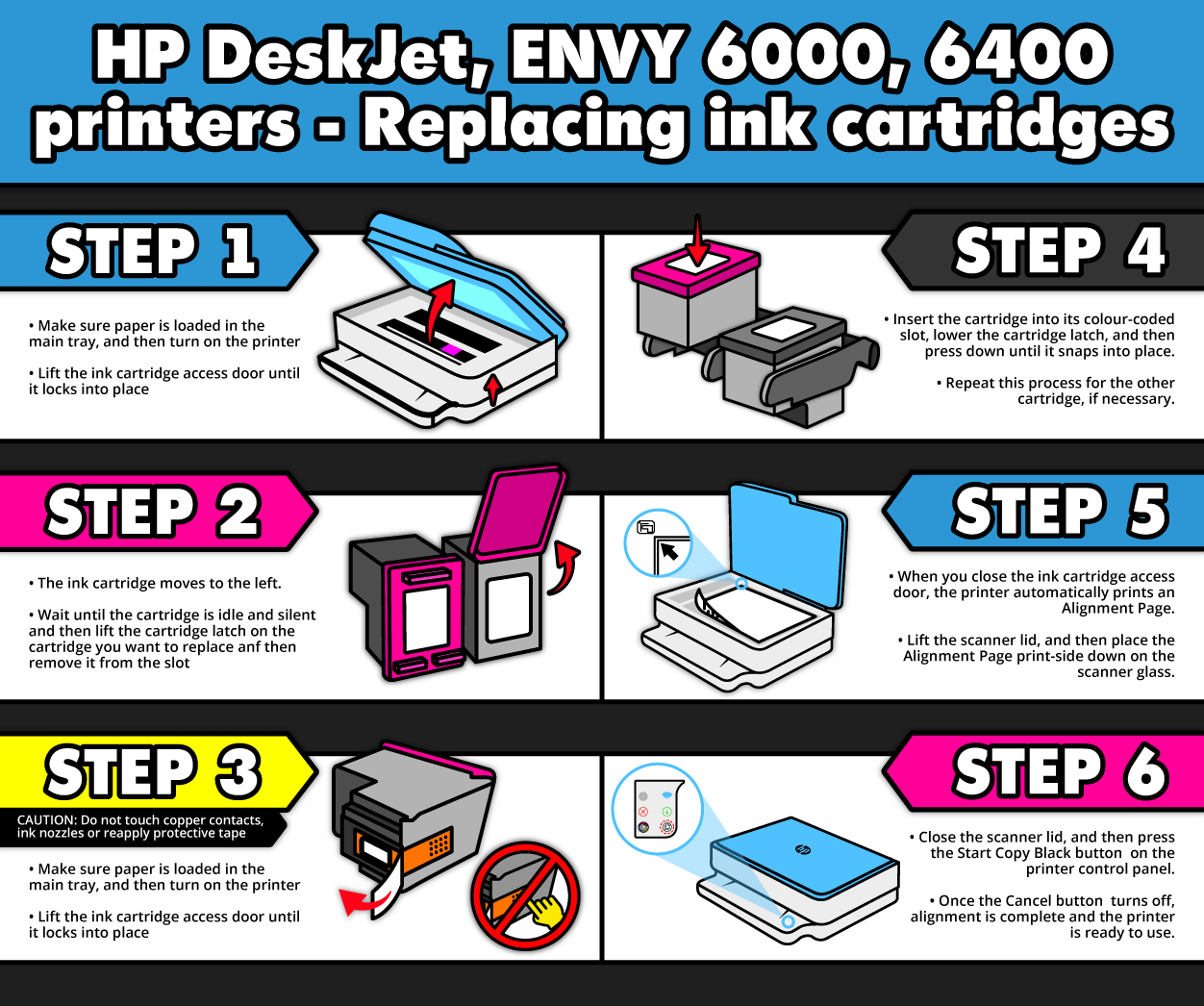
How Do I Change the Ink in my Envy 6000?
What our customers are saying
View all ›Applied: