
signup
Enter your email address and receive all updates!
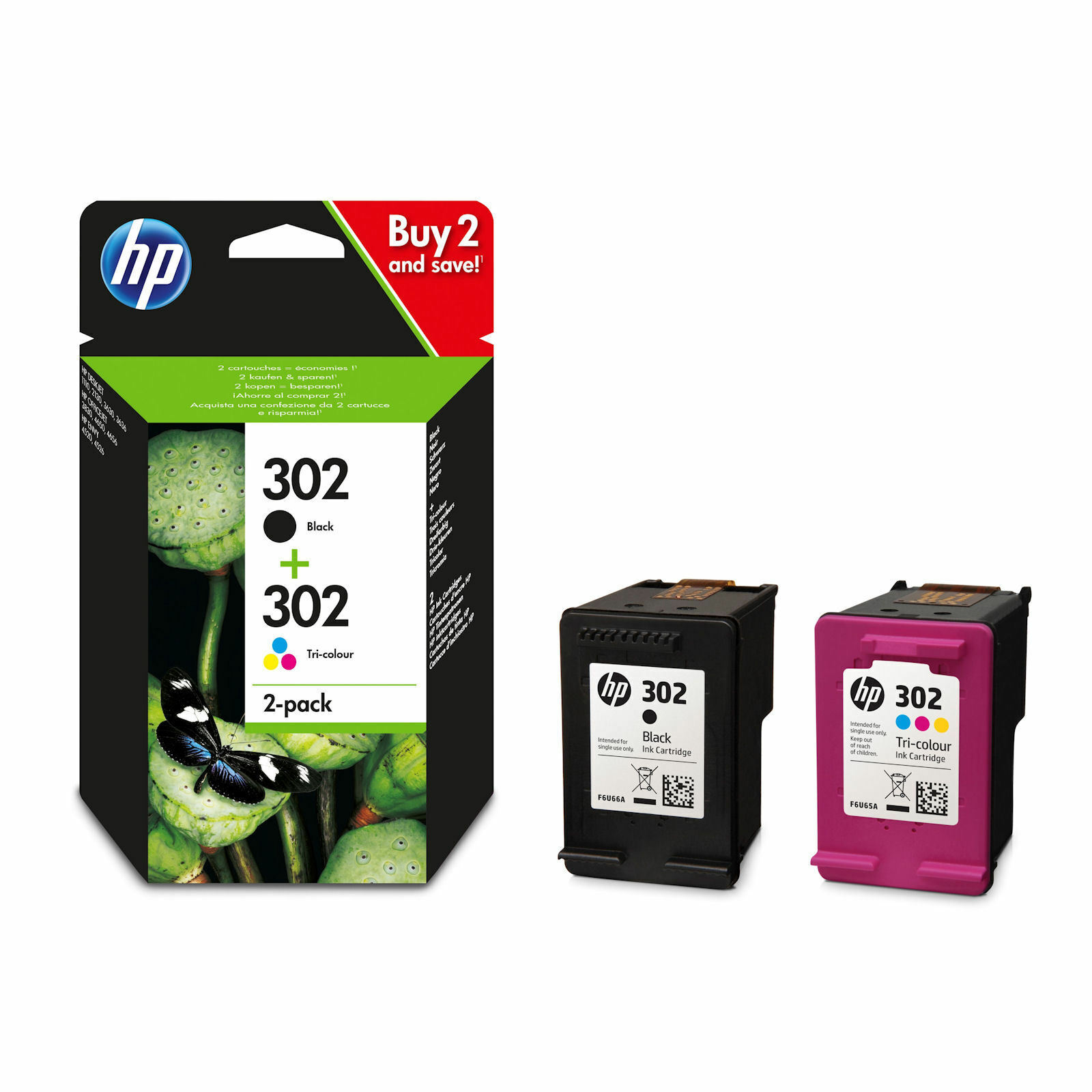
HP 302 Ink
HP 302 Ink Comparison
| HP Original 302 Ink (XL) | IJT Recycled 302 Ink (XL) | |
| Warranty | 6-12 Months | 5 Years |
| Price | from £33.82 | from £20.95 |
| Longevity | Up to 18 Months | Up to 5 Years |
| Yield | 480 Pages (Black), 330 Pages (Tri-Colour) | 430 Pages (Black), 300 Pages (Tri-Colour) |

HP INK CARTRIDGE WARRANTY - HP Original ink cartridges are supplied with a 12 month warranty while IJT Recycled HP 302 ink cartridges are supplied with an industry leading 5 Year Warranty

FAST UK DELIVERY. NEXT DAY COURIER DELIVERY AVAILABLE - All orders of HP 302 ink cartridges are shipped same working day if placed before 3pm

LOWEST PRICES - IJT have the best quality HP 302 ink and the lowest prices in the UK. Save money on HP OEM ink

RECYCLE YOUR HP 302 INK - Visit our Recycling Page for more information. Do your bit to save the planet and buy IJT Recycled ink
HP 302 Ink Product Overview

HP 302 ink cartridges are renowned for their reliability and high-quality output, making them a perfect match for a diverse array of HP printers. Ideal for daily printing needs, the black cartridge ensures sharp, readable text, perfect for any document, while the tri-colour cartridge brings out vibrant, eye-catching colours in images.
These cartridges stand out for their long life and economical ink consumption, offering a budget-friendly solution for both individual and business printing requirements. Available in two yield options, standard and high capacity (XL), HP 302 ink cartridges allow for greater savings and enhanced efficiency, catering to different printing demands.
The process of installing or replacing HP 302 ink cartridges is designed to be straightforward and quick, with just a few easy steps and no need for specialised knowledge. This ease of maintenance helps keep your printer delivering high-quality prints without interruption.
HP 302 Ink Printing Tips and Tricks
For the best results with HP 302 ink cartridges, it is recommended to use:
Paper Quality: Opt for premium, heavyweight paper when printing images and important documents to achieve the best print quality. For daily text documents, regular printer paper is adequate.
Printer Settings: To conserve HP 302 ink, adjust your printer to 'High Quality' for detailed prints and switch to 'Draft' or 'Standard' for everyday documents. This strategy helps in efficient ink management.
Cartridge Care: Store any extra HP 302 black ink and HP 302 colour ink cartridges in a location that's cool and dry, and make sure to use them before they reach their expiration date to keep your prints looking great.
Regular Use: Using your printer frequently helps to prevent the ink from drying up and ensures the print nozzles stay clean, leading to consistently high-quality printing results.
HP 302 Frequently Asked Questions
How do I correctly install a HP 302 ink cartridge?
Turn on your HP printer, open the cartridge access door, and wait for the carriage to stop moving. Remove the new HP 302 ink cartridge from its packaging, pull the tab to remove the protective tape, and insert the cartridge into its slot until it clicks into place.
What are the steps to troubleshoot print quality issues with HP 302 ink?
Run the printer's cleaning cycle if prints are streaky or faded. Ensure all 302 cartridges are properly installed and not depleted. If issues persist, consider replacing the HP 302 ink cartridge.
Which HP printer models are compatible with HP 302 ink cartridges?
HP 302 ink cartridges are compatible with the following printers:
HP Deskjet 1110 Printer
HP Deskjet 2130 Printer
HP Deskjet 2132 Printer
HP Deskjet 2134 Printer
HP Deskjet 3634 Printer
HP Deskjet 3636 Printer
HP Deskjet 3637 Printer
HP Deskjet 3638 Printer
HP Deskjet 3639 All-In-One Printer
HP Envy 4511 All-in-One Printer
HP Envy 4512 All-in-One Printer
HP Envy 4516 All-in-One Printer
HP Envy 4520 All-in-One Printer
HP Envy 4522 All-in-One Printer
HP Envy 4523 All-in-One Printer
HP Envy 4524 All-in-One Printer
HP Envy 4525 All-in-One Printer
HP Envy 4526 All-in-One Printer
HP Envy 4527 All-in-One Printer
HP Envy 4528 All-in-One Printer
HP Officejet 3830 Printer
HP Officejet 3831 Printer
HP Officejet 3832 Printer
HP Officejet 3833 Printer
HP Officejet 3834 Printer
HP Officejet 3835 Printer
HP Officejet 4650 Printer
HP Officejet 4652 Printer
HP Officejet 4654 Printer
HP Officejet 4655 Printer
HP Officejet 4656 Printer
HP Officejet 4658 Printer
HP Officejet 5230 Printer
What should I do with my empty HP 302 ink cartridges?
Don't throw away your empty cartridges, save them from landfill and help save the environment by recycling them. Our Recycled page has loads of useful info on how to responsibly dispose of your used HP 302 ink.
How can I extend the life of my HP 302 ink cartridge?
Use print settings wisely; 'Draft' mode for less important documents saves ink. Store unused cartridges properly and use them before the expiration date.
How can I distinguish between HP 302 Black and Tri-Colour ink cartridges?
The black HP 302 ink cartridge, designed for black and white document printing, is physically black. In contrast, the tri-colour cartridge, which merges cyan, magenta, and yellow for colour printing tasks, is physically purple.
What should I do if my printer doesn't recognise the HP 302 cartridge?
Remove the cartridge from outer packaging, check for any protective tape left, and clean the contact points gently with a lint-free cloth before reinserting.
How do I check the ink levels of my HP 302 ink cartridges?
Check ink levels through your printer’s control panel or software. Some printers also display ink levels on the computer when a print job is initiated.
What our customers are saying
View all ›Applied: