
How to Install and Replace HP Printer Cartridges: The Ultimate Guide
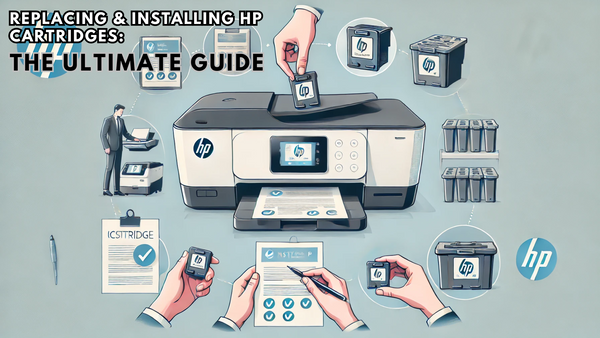
If you've recently bought HP ink cartridges or dug out a spare from the back of your cupboard, you may be wondering exactly how to install or replace them. Each model of HP printers are slightly different, but luckily they are all quite straight forward to change cartridges. Most people forget this, but installing cartridges properly is essential. Why? Well, not only does it help prevent ink wastage, but it also extends the lifespan of your printer.
Which Ink Cartridge Do You Have?
OEM HP ink cartridge
An OEM (Original Equipment Manufacturer) cartridge is made by HP, designed specifically for HP printers. With an OEM cartridge, you’re getting the exact product the printer was built to use. This means they’re easy to install, recognised by the printer instantly, and (mostly) trouble-free.
Things to look for when installing OEMs
HP cartridges always come with a strip of protective tape over the ink nozzles, which need to be removed before installation. Missing this simple step will mean the cartridges won't click in to place in the carriage and it won't then move back in to place so no printing will be possible.
It’s also worth noting that the copper contacts on these cartridges are sensitive, and any dirt, oils, or scratches can disrupt connectivity and your print quality. When you’re handling a cartridge, be extra careful not to touch the contacts or nozzles.
Lastly, your HP printer should recognise the cartridge right away, meaning you won’t have to troubleshoot recognition or alignment issues as you might with other options. However, even if there is an issue, a quick restart usually resolves it without much hassle.
Recycled original ink cartridge
Recycled or remanufactured cartridges are previously used HP cartridges that have been professionally rechipped, refilled, and resealed. They’re a fantastic, eco-friendly alternative to OEMs, and for most printing needs, they perform just as well. Plus, they’re far easier on the wallet.
I’ll admit, I’m a big fan of recycled cartridges for everyday printing. They don’t always have the shiny HP branding, but they do the job and do it well.
Things to look for when installing recycled cartridges
Because recycled cartridges have been refilled, some HP printers may not read the ink levels accurately, often displaying them as low. Don’t worry as these cartridges are filled to the same capacity as the originals. You will still get the same page yield despite what the ink level indicator says. Take the HP 305 ink cartridges for example. Both the original and recycled 305XL blacks will yield 240 pages based on a 5% page coverage.
Since recycled cartridges have been previously used, give them a quick once-over for any visible cracks, leaks, or other signs of wear before installation. A damaged cartridge can lead to print quality issues or, worse, leaks inside your printer.
I recommend printing a test page right after installing a recycled cartridge. This will help you spot any minor print quality issues early on, so you can run a printhead cleaning cycle if needed. In my experience, this often clears up any initial streaks or lines.
Some HP models require manual alignment with recycled cartridges. It’s a quick step you can initiate through your printer settings to ensure everything lines up perfectly.
How to Prepare Your HP Printer Ready For a Cartridge Replacement
Before diving into the cartridge replacement process, taking a few quick steps to prepare can save you from hassle and keep your printer in top shape. From checking ink levels to gathering supplies, here’s everything you need to set up for a smooth cartridge change.
Check your HP cartridge levels first
Knowing your cartridge levels helps you avoid mid-project surprises and can indicate if a cartridge replacement is truly necessary. HP printers have a built-in ink level indicator, which you can usually check on the display screen or through the HP Smart app on your device.
I always recommend confirming your ink levels before assuming a cartridge is empty. Sometimes, low-quality prints aren’t because the ink is out but due to clogged nozzles or alignment issues. By double-checking, you can avoid a replacement if a quick printhead clean or alignment will do the trick.
How to check:
- On your HP printer display: Most HP models allow you to view ink levels directly on the printer’s LCD display under settings or ink/maintenance sections.
- Through your HP Smart App: If your printer is connected to Wi-Fi, either wirelessly or wired, you can also check ink levels using the HP Smart app. This can be a quick and convenient option if you’re away from the printer.
Gather necessary materials for your ink cartridge change
When replacing an ink cartridge, having everything in reach can make the process smoother. Here’s what you’ll need:
Your new ink cartridge(s):
Make sure you have the right model for your HP printer. Double-checking model numbers can save you from the frustration of incompatible cartridges.
Lint-free cloth:
In case of minor ink smudges during installation, a cloth is great for wiping surfaces without leaving dust or fibres. Paper towels or kitchen rolls will also work just as well here.
My friendly tip:
One of the biggest frustrations I see is people grabbing the wrong cartridge model, especially with HP printers that have several similar series numbers. If you’re unsure, just match the number from the old cartridge before unboxing the new one. Make sure you grab black (if you are changing black) and not cyan or magenta. If you're not sure which cartridge you need for your printer you can use our cartridge finder.
Step By Step Guide To Installing & Replacing HP Printer Cartridges
First, locate and open your HP printer access door
Where is this located?
On most HP models, the access door is right on the front or top of the printer. It’s usually marked or hinged, making it easy to spot. HP designs these access doors to be fairly simple to open, usually with a light pull or lift. There’s no need for heavy force.
Fully open the access door
Hold the access door with both hands to keep it steady. Avoid pushing on any part of the door or carriage to prevent damage. Once open, wait for the cartridge carriage to stop moving before reaching inside.
Next remove your old printer cartridges
Where will these cartridges be?
Once you open the access door, the cartridge carriage should automatically slide to the centre, making it easy to access. The cartridges are usually colour-coded to indicate which cartridge is which..
How to remove the empty cartridges
Gently press down on each cartridge to release it. HP cartridges are designed to click out with light pressure. Pulling them out should be smooth; if there’s any resistance, don’t force it.
If the cartridge doesn’t slide out, double-check that you’re pressing it in the right spot, usually near the top or centre. For extra help, look for any plastic tabs or clips holding it in place.
Put your cartridge somewhere safe for recycling
Keep the cartridge upright as you remove it to avoid ink spillage. HP cartridges are generally leak-proof, but handling them carefully can prevent any accidental smears.
Definitely don't throw away the empty cartridges; there are plenty of options to recycled them responsibly.
Get your new cartridge ready
When preparing your new cartridge, ensure its facing the correct way up, usually with the label visible and copper contacts at the bottom.
Detailed instructions for unboxing, handling, and removing protective seals without damaging the cartridge:
Unbox the cartridge carefully
Remove the cartridge from its packaging, but avoid touching the copper contacts or nozzles as these are crucial for proper functioning.
Remove the protective tape
HP cartridges have a plastic strip over the ink nozzles. Slowly peel this off without touching the ink nozzles. Missing this step will prevent ink from flowing and may trigger an error message.
My tip:
Avoid twisting or pulling anything on the cartridge too hard during unboxing. Some users have reported minor issues when trying to “snap off” protective covers, which is unnecessary. Just peel the protective tape and handle the cartridge gently.
How to install your new HP cartridge
- Align the cartridge with the slot: Insert each cartridge into its colour-coded slot—black for black, colour for colour.
- Insert with a firm push until it clicks: Slide the cartridge into place at a slight angle, pushing it in until it clicks. This click confirms the cartridge is securely in place.
- Avoid forcing the cartridge: If it doesn’t click, check that it’s aligned correctly rather than forcing it. Forcing a misaligned cartridge can damage the slot and lead to print errors.
I always tell people to listen for that ‘click’ sound; it’s your confirmation that the cartridge is seated properly. If there’s no click, take it out and try again making sure you've removed any packaging or seals.
Now close your printer access door
Make sure both cartridges are seated correctly and that nothing is obstructing the carriage. Closing the door without double-checking can lead to error messages or a misalignment.
Final steps to complete the installation process:
Once the cartridges are installed and you’ve closed the access door most HP models will automatically detect the new cartridges and may prompt you to align them. Follow any on-screen instructions if prompted, alignment ensures your printer is set for optimal print quality.
Finally, run a test print
After installation, it’s best to run a test print to make sure everything’s working smoothly. You can use our free printer test page to check ink quality, alignment, and colour accuracy.
Instructions on running a test print to ensure the cartridge is correctly installed and ink is flowing smoothly:
- Go to your printer’s settings menu, and look for a “Maintenance” or “Print Test Page” option.
- Select the test print and wait for the page to finish. This is your first chance to spot any issues, like streaks or faded colours, and address them right away.
- If needed, run a quick cleaning cycle to prime the cartridge nozzles.
Common Mistakes When Installing HP Printer Cartridges
Failing to remove protective tape or seals
Always double-check for protective tape on your cartridge’s nozzles. Missing this step is more common than you’d think, and it stops ink from flowing, leading to blank prints. I recommend peeling the tape off slowly. Otherwise sometimes it sticks, and tearing can leave tiny bits behind.
Touching the nozzles or copper contacts
A major no-no. Touching the nozzles or copper contacts can disrupt the ink flow and damage the cartridge, so always hold it by the edges. From my experience, a simple slip of the finger won’t be too damaging but it’s best to avoid it.
Forcing cartridges into place
If the cartridge doesn’t slide in easily, check there isn't any packaging that needs to be removed—don’t force it! Forcing can break internal parts, and trust me, those repairs aren’t cheap. Always insert the cartridge at a slight angle and listen for the “click.”
Ignoring cartridge alignment
Alignment is key to clear, precise prints. Skipping alignment can lead to streaky or blurred results. I’d suggest running an alignment immediately after installation; it takes a few minutes but saves a lot of ink and hassle later on.
Ignoring firmware updates
If you’re ignoring updates, you could be in for errors and compatibility issues. I recommend setting firmware to update automatically, especially if you use compatible or recycled cartridges.
Installing cartridges with low ink levels
Start with a fresh, full cartridge to avoid streaky prints or “low ink” warnings right out of the gate. I always check the ink level beforehand. It’s a 10-second step that saves a lot of frustration mid-project.
Neglecting to check cartridge expiration dates
Old cartridges can dry out, causing clogs or faded prints. Check the expiration date before installing. For me personally, expired cartridges rarely perform as well, and you’re better off with a fresh one for optimal print quality.
Misinterpreting cartridge lock mechanism
HP printers have different lock mechanisms, and it’s easy to misinterpret them. Forcing a locked cartridge can break it. A quick look at your manual can save you from a costly mistake here. Always double-check before installing.
Failing to clean cartridge slots for optimal contact
Dust in the cartridge slots can disrupt the connection and print quality. Wipe the slots gently with a lint-free cloth before installation; it’s a small step that makes a noticeable difference in performance, especially if your printer is a bit older.
Troubleshooting HP Printer Cartridge Issues
Printer not recognising the cartridge
If your printer isn’t recognising a new cartridge, try these steps:
- Remove the cartridge, and reinsert it firmly until it clicks. Sometimes, a quick reseating solves the issue.
- Wipe the copper contacts on the cartridge with a lint-free cloth to remove dust or smudges that may interfere with the connection.
- Powering off and restarting the printer can often reset the cartridge detection.
I find that reseating the cartridge with a restart fixes this issue 90% of the time.
Low ink warning after new cartridge installation
It’s common for recycled or compatible cartridges to show a low ink warning, even when full. Here’s what to do:
- Most HP printers will let you continue printing with this message. If print quality is unaffected carry on printing.
- Remove the cartridge, power off the printer, wait a minute, turn it back on then reinsert the cartridge.
- Make sure the cartridge is compatible with your printer, you can't just mix and match and use any cartridges with any HP printers.
Don’t worry too much about low ink warnings on a new cartridge. If your print quality looks good, keep going.
Poor print quality after installation
If prints look streaky or faded after inserting a new cartridge:
- This clears any clogs in the nozzles and improves ink flow.
- Running an alignment process ensures the cartridge is positioned correctly for optimal print results.
Always print a test page after installation. It’s a fast way to spot and fix any print quality issues right away.
Fixing paper jams related to cartridge issues
Sometimes paper jams are actually caused by cartridge misalignment or loose parts:
- A poorly seated cartridge can disrupt the paper path, leading to jams. Reinsert the cartridge firmly to make sure it’s in place.
- Open the access door and check for loose bits of tape or packaging that may have been left behind.
- Occasionally, a jam is due to worn pick-up rollers, which can be exacerbated by misaligned cartridges. Clean or replace rollers if needed.
Paper jams can often be traced back to an improperly installed cartridge. Always check alignment if you’re seeing repeated jams.
Conclusion
Installing and troubleshooting HP printer cartridges doesn’t have to be complicated. With a bit of know-how and some straightforward steps, you can keep your printer running smoothly and avoid the most common issues.
Whether you’re installing an OEM or recycled cartridge, remember to handle it carefully, align it properly, and keep your printer maintained with regular cleaning and firmware updates.
By following this guide, you’ll ensure your printer delivers high-quality prints every time while extending the life of both your cartridges and the printer itself. If you ever run into issues, refer back to these troubleshooting tips to get back to printing quickly.
And remember—taking a few extra minutes during installation can save you a lot of time and hassle in the long run!
If you need to decide if you need standard or high capacity HP cartridges for your printing needs, be sure to check out my previous blog, HP Ink and Toner Cartridges: How to Choose Between Standard and High Capacity (XL) Options. This guide breaks down the differences between standard and XL cartridges, helping you make an informed choice based on your usage, budget, and printing goals. Whether you're looking for cost efficiency or long-lasting performance, this post will help you find the perfect cartridge to keep your printer running smoothly.
Blog Author: Simon Cross is the engaging and knowledgeable voice behind the insightful articles on printers and printer consumables at IJT Direct, an ecommerce store renowned for its comprehensive selection of printers, printer consumables, and hardware. View Simons author page to find out more about him.
Browse Our Top Ink Cartridges