
How to Maximise The Life of Your HP Printer
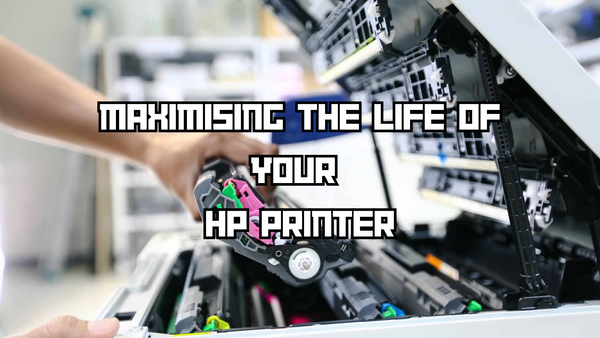
As a result of testing many different HP printer models I’ve picked up a few tips and tricks to make sure they function at their best for as long as possible. To extend the life of your HP printer, all it takes is a few minutes a week. Sounds like a good deal?
In this blog, I’ll walk you through simple yet effective ways to maintain your HP printer, including regular cleaning and replacements.
How to clean your HP Printer
Clean the printer exterior
This might seem like the most obvious (and least exciting) thing to do, but cleaning the outside of your printer is super helpful! Keeping dust from building up around the printer’s exterior helps prevent it from making its way inside to more sensitive components.
- What you’ll need: A lint-free cloth and a mild cleaning solution. Avoid harsh chemicals; a quick spray of anti-bacterial solution or just a damp cloth will do the trick.
- How to do it: Simply wipe down the outside of your printer. Focus on removing dust and fingerprints—your printer will look and work better for it!
Clean the paper rollers
Paper rollers play a crucial role in pulling paper into the printer, and if they’re dusty or dirty, they can cause paper jams or skewed prints. Cleaning the rollers is a quick task that can make a huge difference. Just one thing to note here is that not all HP printers have accessible paper rollers, so check your manual to be sure. You shouldn’t have to take anything apart.
- What you’ll need: A microfibre cloth. Avoid using any liquid, as it could damage the rollers.
- How to do it: Check your printer’s manual to locate the paper rollers (usually inside the paper tray or accessible from the back panel). Gently wipe down the rollers.
Clean the printheads
If you have an inkjet printer, printheads can get clogged with dried ink, especially if you don’t use your printer regularly. By keeping the printheads clean, you’ll improve the quality of your prints and extend the life of your printer. Aim to run this cycle every 1-2 weeks to prevent ink clogs and maintain print quality.
Which printers need printhead cleaning?
Okay, so this won’t be part of regular maintenance for every printer. If you have a laser printer, they actually don’t have any printheads so you can skip this step.
Also, some HP printers have printheads attached to the cartridge, so you’ll actually be changing the printheads every time you refill the ink, which is a bonus! This is the case for a lot of the budget models like the DeskJet and Envy, but it’s worth checking!
If the cartridge has a long, gold or copper-coloured strip with a nozzle at the bottom, the printhead is built into the cartridge. Examples include HP 61, 63, 65, and 67 cartridges.
How to Clean the Printheads
Most HP printers actually have a built-in maintenance software which I’ve outlined below in method 1. The only printers that I’ve come across that don’t have this software are some of the older, budget models like the DeskJet 2622 or Envy 4500. If that’s the case for you, try method 2.
Method 1: Using the Printer Software
- Open the Control Panel on your computer and go to Printers and Scanners.
- Select your HP printer and click Properties or access the printer settings.
- If ink levels are fine but prints look poor, go to Printing Preferences.
- Under the Service or Printer Services tab, select Clean Printheads to start the process.
Method 2: Cleaning the Printhead Manually
- Turn on the printer and open the access door. Let the cartridge carriage centre, then unplug it.
- Remove the cartridges and gently clean their contacts with a lint-free cloth.
- Use a cleaning kit or approved solution to wipe the printhead contacts inside the printer.
- Let everything dry for about 10 minutes, reassemble, and plug the printer back in.
- Run the initialization process to ensure everything is working.
Tip: Be gentle with the components and only use water or approved cleaning solutions to avoid damage.
If you’re interested in learning more about this, I actually wrote a whole blog on how to perform printer maintenance.
Stick to HP’s Recommended Monthly Page Volume
HP provides a Recommended Monthly Page Volume for each of its printers, which is essentially a sweet spot for keeping your printer in top shape. In my opinion, staying within this range is one of the most important factors to making sure your printer lasts the distance. And double check you’re looking at the right thing - the duty cycle isn’t the same!
Although HP printers are known for their durability, each model is designed with a maximum workload in mind. This is why they’re able to offer models for users on a budget - not every printer is designed for heavy duty printing.
The Recommended Monthly Page Volume range is carefully calculated by HP considering factors like optimal supplies replacement intervals, internal wear, and the life expectancy of the printer. Consistently exceeding the recommended page volume can overwork your printer, increasing the chances of overheating or accelerated wear.
So, I always recommend keeping in mind what your printer is built to withstand and sticking with that limit.
What if I purchased the wrong printer?
I get this question a lot because customers often rush into a printer decision without doing the proper research. Here's what you can do if you've chosen the wrong printer and you're stuck with it.
As a home user
If you’ve already purchased a home printer that isn’t suitable for your needs, consider printing some documents in bulk at a printing place and reserving your home printer for when you need a small job done quickly - like a recipe, a boarding pass or the kid’s homework.
As a business user
If you’re a business owner, there’s usually no other way around this issue than to sell the printer second hand and buy a new one. If your current printer is still in good condition, you can at least offset the cost of an upgrade with any money you’ve recouped from selling the unsuitable printer, and it’s usually more economical than just running the old one into the ground.
Plus, by making the switch, you can avoid the headaches and downtime caused by an overused printer. Usually, you’ll start to notice degraded performance pretty quickly.
Check out my full guide on the best office printers for 2024, so you can be sure that the upgrade will fit your needs.
Know When to Replace HP Printheads
Wondering if it’s time to replace your printhead? A tell-tale sign is when you see white streaks or missing lines on your prints, even though your ink cartridge is full. This usually means your printhead isn’t working as it should and might need a replacement.
One of my favourite things about these printers is that most have printheads built right onto the HP ink cartridges. This makes maintenance easier since every time you replace a cartridge, you’re effectively getting a fresh printhead too.
However, some HP models come with separate, longer-lasting printheads that need to be replaced independently.
How to replace a separate printhead
If your printer has a separate printhead, you’ll need to purchase it separately from the ink. You can buy it either directly from HP or from a reliable third-party seller like IJT. Then, follow these steps to replace it:
1. Access the Printhead Compartment: Open the printer lid or access panel according to your printer model’s instructions.
2. Remove the Old Printhead: Wait until the printhead carriage stops moving, then gently unlock and remove the old printhead.
3. Install the New Printhead: Carefully insert the new printhead in the same position as the old one and secure it in place. Make sure it clicks in firmly.
4. Run a Test Print: Once everything is back in place, close the printer and run a test print to make sure the new printhead is installed and working properly.
How often should I replace HP printheads
The good news is that you won’t need to do this all that often. It obviously depends on your printing frequency, but in my experience you can go 1-2 years before having to change the printhead.
Prevent Ink Cartridges from Drying Up
Okay, so for those of you with a business printer, this won’t be an issue. But, if you use your printer infrequently for just home use, stopping your ink from drying up is a really important point for you.
The reason I say this is that letting ink dry up in your machine will, as I’ve covered in different parts of this and other blogs, cost you money and time because you’ll likely have to replace 1 or more cartridge/s even if there is ink left.
Follow the below steps to keep your printer from running into these kinds of problems.
Print regularly
I recommend printing at least once a week, once every two weeks at a push, even if it’s just a test page. That way you can make sure when you actually do want to use the printer it will work first time. This routine keeps ink flowing through the printheads, reducing the risk of clogging or drying up.
Use the correct printer cartridge size
Choosing the right cartridge size is another factor at play here. If you’re not printing frequently, avoid using XL or high-yield cartridges. These larger cartridges are designed for high-volume printing, and if left idle, they are more prone to drying out.
For some users, sticking to regular-sized cartridges can actually help extend the life of your printer and prevent issues that might arise from dried-up ink in oversized cartridges. If you’re not sure which cartridge size is right for you, I did a deep dive on XL vs regular HP cartridges here.
Shut Down Your HP Printer Properly
So, you’re done using your printer and want to save on energy. Just yank the power lead out right? No! Resist the urge to simply unplug your HP printer when you’re done using it. Shutting the printer down this way can actually lead to performance issues over time.
HP printers are designed with a specific shutdown process that safely parks the printhead to prevent it drying out and prepares the machine for its next use. Always turn off your printer using its power button or the shutdown option on its control panel.
You’re not going to have an issue if you forget once or twice, but over time small habits like this make a difference to the lifespan of the printer.
Use the Right Printing Paper
A lot of people don’t realise that you can’t use just any type of printer or photo paper in every machine.
Each HP printer has a recommended paper range, covering aspects like weight, thickness, and finish. You can often find this on HP’s website or the printer manual. Using paper outside these specifications can lead to paper jams, smudges, or poor-quality prints.
In my experience you should also avoid using damaged or wrinkled paper because it can cause jams. For more information on the importance of choosing the right printing paper, read this blog!
What to Do When Your HP Printer Jams
One of the easiest ways to mess up your printer's alignment is to start yanking pages out of it when there's a paper jam. Instead, always follow the printer's onscreen instructions or use the manual to avoid doing any damage. There is a good chance each HP printer has a slightly different procedure to follow.
Use Diagnostic Tools
Printer head alignment
One of the simplest ways to maintain print quality is by aligning the printheads, which can be done using the software tools that come with your HP printer. Look for the alignment tool in the printer’s navigation menu or in the software provided with your device.
What I’ve noticed while testing HP printers is that this makes a real difference to the print quality over time. Aligned printheads will give you colours that stay bright and solid, without dull patches or streaky lines across the page.
Print test pages
Printing a test page is a quick and effective way to spot issues before they become major problems. Test pages can help identify alignment issues, colour problems, and more, giving you a clear picture of your printer’s health. Using the printer’s diagnostic tools, you can print a test page in just a few clicks.
For more on how to use and interpret printer test pages, check out my detailed blog post on printer test pages.
The Ideal Maintenance Schedule for a HP Printer
Okay, so I know this is a lot of information at once. To make it easier to implement, I’m sharing the maintenance schedule that I follow for my printers. Usually, I’ll spread the tasks out through the week and perform one of the four monthly tasks each week.
| Task | Frequency | Estimated Time | Description |
|---|---|---|---|
| Clean printer exterior | Weekly | 1-2 Minutes | Wipe down printers surfaces to remove dust and fingerprints |
| Check ink / toner levels | Weekly | Use the printer's software to monitor ink or toner levels. Replace cartridges and order replacements as required | |
| Print a test page | Every 2 weeks | 3-5 Minutes | Print a test page to check for print quality issues |
| Clean paper pickup rollers | Monthly | 10-15 Minutes | Wipe down rollers inside the printer to remove dust & debris |
| Clean the printhead | Monthly | 5-10 Minutes | Run the printers built-in cleaning cycle to clear any printhead blockages |
| Check for software updates | Monthly | 5-10 Minutes | Check for any available updates and install. Generally this is done automatically but check regardless |
| Check printhead alignment | Monthly | 5-10 Minutes |
Run the printers built-in printhead alignment to ensure the printhead is properly aligned. This will ensure print quality is not compromised |
Key Takeaways
HP is a very reliable brand and their printers, like any technology, need proper maintenance to ensure they work as they should. These methods I’ve recommended are tried and tested - I’m always able to get good use out of the printer beyond the HP warranty. So, follow my maintenance schedule, you’ll thank me later!
If you’re interested in learning more about HP printers, check out my last blog on how to install and replace HP ink cartridges!
Blog Author: Simon Cross is the engaging and knowledgeable voice behind the insightful articles on printers and printer consumables at IJT Direct, an ecommerce store renowned for its comprehensive selection of printers, printer consumables, and hardware. View Simons author page to find out more about him.
Browse Our Top Ink Cartridges